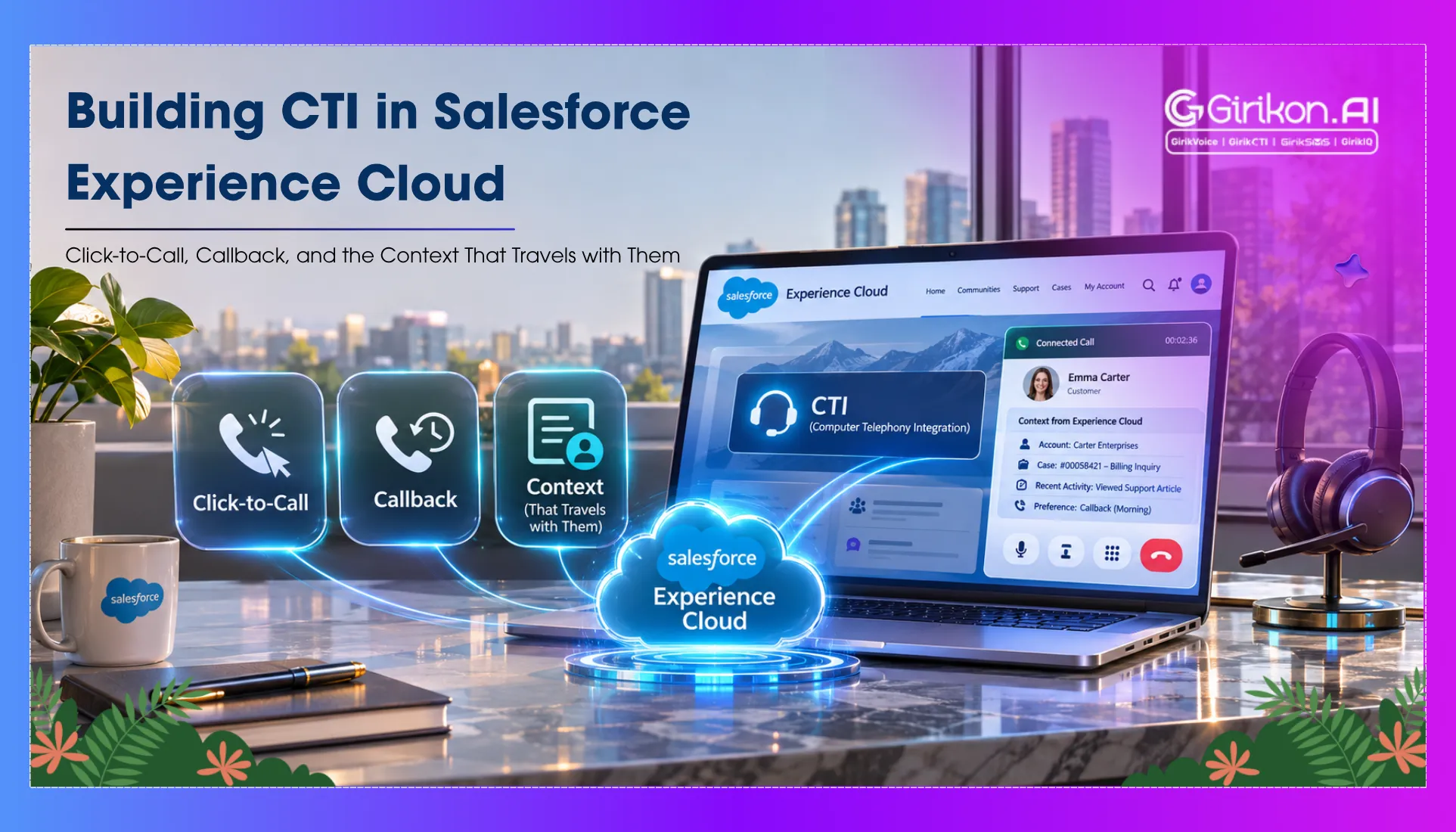
Discover how Salesforce Experience Cloud brings seamless communication to digital experiences through Click-to-Call and Callback functionality. Explore how customer context, interaction history, and relevant data travel with every call, helping agents deliver faster, more personalized, and connected customer support.
A portal is a window for customers to look into their cases, invoices, order status, or to see what went wrong. The one thing it does not do for them is provide a chance to address the issue on the spot without leaving the window. If the information is not available on the portal, the call goes to another phone line, and the person who answers it has no idea what the user was seeing before the call. CTI in Salesforce Experience Cloud changes that sequence. The call or callback starts from the same page where the question came up, and the context the portal already holds travels with it.
Why Bring CTI Into an Experience Cloud Portal?
Experience Cloud portals allow external users to get a view inside Salesforce – cases, invoices, orders, product registrations, opportunities, whatever the organization configures. The portal handles the display. What it does not natively handle is what happens when a user needs more than information.
An embedded calling experience shortens that gap. A customer looking for a case can request assistance right while browsing the case on the screen. A distributor viewing an order can inquire about exceptions in delivery right from there. A partner working on a sales opportunity can reach the right team directly.
Context matters more than the call itself. A customer expecting a response on an open case assumes that the agent is aware of the case. An embedded telephony feature in the portal that allows passing the case record context to the interaction context of the customer makes such an assumption very reasonable. One that does not pass the context makes it impossible for the agent to know why the case prompted the call.
How CTI Works Inside Experience Cloud: The Architecture
This is how Experience Cloud differs from Salesforce core when it comes to implementing features. Open CTI is an interface within the core Salesforce organization that connects the browser to the CTI adapter through a JavaScript API. For a deeper understanding, refer to the Complete Salesforce CTI Integration Guide. The platform handles session authentication, permission enforcement, and screen pop resolution. The softphone renders inside the Lightning environment. Developers and administrators implementing CTI in Sales or Service Cloud work within a path Salesforce has maintained and documented extensively.
Experience Cloud pages run on Lightning Web Runtime. Guest users have no underlying Salesforce session to leverage. Authenticated community members have a session, but it runs under a community license — and community licenses do not come with Service Cloud Voice access built in. The CTI Adapter and Open CTI JavaScript API that serve internal users in the core org are not surfaced to portal users through this session context.
This means the standard Open CTI softphone does not simply drop into an Experience Cloud page. Getting voice into the portal requires choosing between two architectural paths.
Path one: custom Lightning Web Component with CTI provider API
A custom Lightning Web Component embedded on the Experience Cloud page makes a direct API call to the CTI provider’s endpoint when the customer initiates a call or requests a callback. The component captures the portal context — current page URL, record ID if the customer is viewing a case or account, authenticated user details — and passes it as metadata to the CTI provider. The provider transfers the caller to the agent queue and displays the caller’s metadata as a screen pop in the agent console through the standard CTI Adapter integration. For a detailed overview, refer to the Salesforce Telephony Integration Setup Guide.
This process works for both authenticated and non-authenticated callers since the component operates at the page level rather than the Salesforce session level. It only needs to be coded along with having a CTI provider supporting contextual metadata passthrough via their API.
Path two: Flow-triggered callback through Omni-Channel
Authenticated users from the community can submit a callback request consisting of their name, phone number, purpose of the call, and context of the current record using a Salesforce Flow deployed on the Experience Cloud page. The process creates an Omni-Channel work item and assigns it to the appropriate agent queue through Salesforce Call Queue Management.
This path requires no custom CTI component and no direct API call to a telephony provider. This is because it makes use of the native Salesforce objects, the callback request as a work item, Omni-Channel for routing, and a flow for the capture logic. The drawback is that it is a scheduled callback instead of a real-time connection, and the customer exits the portal context before the agent initiates the callback.
Experience Cloud Portal Calling: Click-to-Call for Authenticated Users
For authenticated community members—customers who have logged into the portal—Salesforce Outbound Calling through a click-to-call component delivers the richest integration with Experience Cloud Portal calling.
The component is designed to render the call button within the contextual scope: if the customer is viewing a case detail page, it displays the call button next to the case record. In case the customer is viewing the account page, the call button shows up within the account context. Upon pressing the call button, the component makes the call to the agent using a selected telephony service and sends the record Id and the page context as call metadata.
The authentication depth of a community member session — specifically whether the user is on a Customer Community license or a Customer Community Plus license — affects what record data the component can read. Customer Community Plus licenses support sharing rules and record-level access that Customer Community licenses do not, which matters when the click-to-call component needs to pull case or order data into the call metadata package.
Community Portal Click to Call: Handling Guest Users
The guest users pose another concern because they don’t have any Salesforce session or contact record; in addition, there is no authenticated user identity available to the portal to be passed on to the CTI vendor.
The guest user community portal click-to-call functionality utilizes an embedded form on the call initiation component where the minimum fields of name, phone number, and purpose of calling are gathered before making the actual call. Along with this data, the page URL of the current page is also sent as context payload.
On the agent side, this payload arrives as a new inbound work item with the submitted details and page context, enabling seamless Salesforce Inbound Calling integration. The agent does not have a pre-matched Contact record on screen, but they do know which page triggered the contact request and what the customer entered. That’s more than enough background to have the discussion without going blind.
If organizations need the ability to match callers to existing Contact records, then a matching Flow can be applied to the phone number submitted to check whether a matching Contact record exists before the work item goes to the agent and attach it if so.
Partner Portal Voice: A Different Integration Depth
Partner portal voice operates under a different set of conditions than customer-facing portals. Partner users are typically on Partner Community licenses, which carry deeper object access than Customer Community licenses and support a richer session context.
This means a partner portal CTI integration can go further than a customer portal integration. The click-to-call component can read partner account data, opportunity records, and case history directly from the partner user’s session and pass that richer context to the agent. Agents receiving calls from authenticated partner users can see the partner’s pipeline, their open opportunities, and their support history simultaneously — without the partner having to explain their situation at all.
For channel sales operations where partner calls are high-value commercial conversations rather than general support requests, this level of context delivers a measurable impact on call efficiency and partner satisfaction.
Conclusion
The gap between a customer’s portal experience and the phone call they make when it fails is where handle time grows and first-contact resolution drops. A well-designed Salesforce CTI Architecture for 500 Agents helps bridge this gap by enabling seamless communication, faster call handling, and improved customer support. CTI in Salesforce Experience Cloud closes that gap by keeping the customer’s context alive across the channel transition.
This implementation depends on the nature of your users, the CTI system used, and the amount of session information accessible through the portal. None of these decisions is easy to make, but they’re all made before you start writing any code. Your portal allowing customers to contact you and retaining their context is not a luxury. At the volumes most Experience Cloud deployments operate, it is the difference between a support channel that scales and one that doesn’t.